Using WhatsApp Business with Multiple Employees: What Works and What Doesn't
Up to 4 linked devices come free, but a real team needs more. What the WhatsApp Business app can do in a team, where it breaks down, and how several employees answer one number cleanly together.
Deskwoot Team
15 min read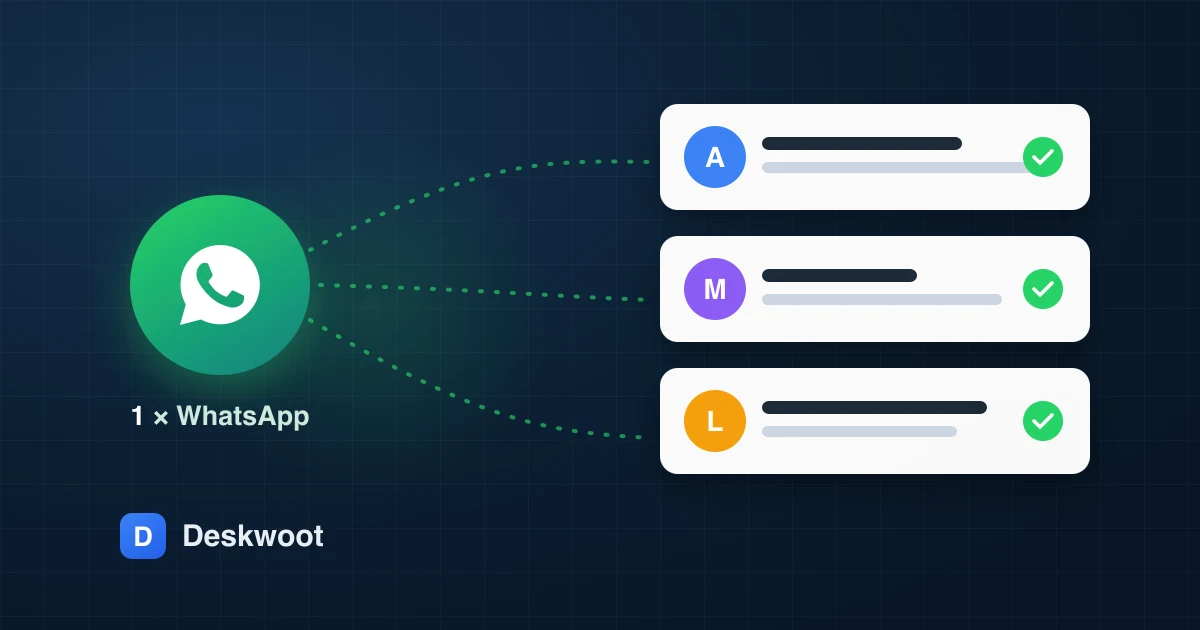
Contents
- Can you use WhatsApp Business with multiple employees?
- How many devices can use WhatsApp Business at the same time?
- Why the WhatsApp Business app gets chaotic in a team
- What is the difference between the WhatsApp Business app and the WhatsApp Business Platform?
- Templates, the 24-hour window and opt-in: the rules teams need to know
- How much does the WhatsApp Business API cost?
- Setting up WhatsApp for a support team, step by step
- What happens to quick replies, labels and the away message?
- Common migration mistakes (and how to avoid them)
- What are the alternatives?
- Conclusion
Yes, you can use WhatsApp Business with multiple employees. The free app allows up to 4 linked devices alongside the main smartphone, and a Meta Verified subscription raises that to 10. From roughly 2 people in support onwards you will still hit a wall, because the app has no assignment, no internal notes and no overview of who is answering what. The clean solution for teams is the WhatsApp Business Platform (formerly known as the "API") with a shared inbox. This article explains both routes honestly: what the app can really do in a team, where it breaks down, which rules Meta imposes, what it all costs and how to make your number team-ready in a few minutes.
Can you use WhatsApp Business with multiple employees?
There are 3 ways, and they differ a lot in effort and day-to-day usefulness:
- Linked devices (free): Your business phone stays the main device, and up to 4 more devices (a laptop browser, the desktop app, a second phone) attach to the same number. Everyone sees everything, everyone replies as the same identity.
- Meta Verified (subscription): The paid Verified subscription for the Business app lifts the limit to 10 devices. The basic principle stays the same, just more devices get to read along.
- WhatsApp Business Platform (API): The number moves from the app onto Meta's platform. There is no device limit anymore, but the platform needs software for your team to work in, for example a shared inbox like Deskwoot. Only here do messages get an owner, a status and a history per employee.
The honest short version: for a single person or a duo sharing one phone, the app is fine. As soon as customer requests need to be distributed, covered during absences and answered traceably, the platform is the only route that does not end in chaos. The rest of this article backs that up in detail, so you can make the call based on actual limits rather than marketing promises.
How many devices can use WhatsApp Business at the same time?
The free WhatsApp Business app supports 1 smartphone as the main device plus up to 4 linked devices, so 5 in total. Meta documents this in the WhatsApp Help Center. With Meta Verified the limit rises to 10 devices. That sounds like a team solution, but it is really a bigger band-aid: all devices still share a single account with a single profile.
In practice, "linked device" means your colleague on the laptop writes under exactly the same name as you. There is no indicator showing which of you is typing, no separation of responsibility and no way to assign a request to someone. With 2 people you can manage that by shouting across the room. With 4 people and 60 chats a day you cannot.
Worth knowing: a number cannot run in the Business app and on the Business Platform at the same time. If you switch to the platform, the number is migrated, and the existing chat history from the app does not move with it automatically. Plan the move deliberately, ideally before the team grows and the history becomes business-critical.
How to link additional devices to the app
If the app is (still) enough for your size, here is the quick route: open WhatsApp Business on the main device, tap the menu, then "Linked devices". On the second device, go to web.whatsapp.com or install the desktop app, then scan the QR code with the main device. From then on chats run on both devices, even when the phone is offline in between.
Three pitfalls are worth knowing. First: if the main smartphone stays offline for around 14 days, WhatsApp automatically disconnects the linked devices, and the office laptop suddenly sits there without chats. Second: push notifications behave differently on linked devices than on the phone, and especially in the browser new messages get lost when the tab is not open. Third: every linked device has full access to all chats. There is no way to show a device only a subset. The intern at the front desk reads the same conversations as the founder.
Why the WhatsApp Business app gets chaotic in a team
The device question ends up being the smallest one. The real problems show up in daily operations, and they repeat in almost every team that has tried the linked-devices route.
A typical example: an online shop with 3 people in customer service. Monday morning, 40 unread chats. Anna starts at the top, Mehmet at the bottom, Lisa jumps in between. Around 10 a.m. Mehmet replies to a customer Anna already answered at 9, just differently. The customer asks, confused, which answer counts. One complaint sits untouched because all three thought someone else had it. In the afternoon Lisa needs to know what was agreed with a regular customer, but that agreement lives in Anna's head, not in the chat. None of this is bad faith. The tool is simply missing.
Nobody knows who is answering. The app has no "assigned to", no "in progress", no "done". Two employees open the same chat, both type, the customer gets 2 different answers to the same question. Or each assumes the other will take it, and the customer gets none.
There is no internal memory. You cannot pin a note to a chat for a colleague ("customer already complained twice, please be generous"). Everything internal runs through a second channel, usually a parallel WhatsApp group where screenshots of customer chats get passed around. At this point data protection starts to suffer too.
Vacation and sick days tear holes. If the number lives on one person's phone, it is effectively offline while that person is away. Linked devices soften this, but the history, the open cases and the knowledge still live in a device instead of in a system the team can access.
Private phones and customer data mix badly. Once employees link the company chat on their personal device, customer conversations sit on hardware the company does not own. When someone leaves, their device stays linked until somebody remembers to remove it. For a GDPR-clean setup you want customer data on controlled systems, with per-person access that can be revoked individually.
Nothing is measurable. How many requests came in this week? How fast did you respond? Which topics keep piling up? The app answers none of these. While volume is small, nobody notices. Once it grows, that is exactly when the basis for decisions is missing: do we need a fourth person? Is an FAQ article about the most common question worth it? You guess instead of knowing.
What is the difference between the WhatsApp Business app and the WhatsApp Business Platform?
The app is a consumer-style product: free, installed in 5 minutes, built for solo founders and very small operations. Profile, catalog, quick replies, labels, all directly on the phone. You have seen its limits above.
The Business Platform (still widely known as the "WhatsApp Business API") is not a program you install but an interface from Meta. It deliberately has no user interface of its own. Instead you connect the number to software built on top of it, and that is where your team works. That can be a helpdesk like Deskwoot, where WhatsApp runs as one channel among several, next to email and live chat.
Three things change fundamentally with the platform:
- Identity per employee: Each person has their own login. Replies, assignments and internal notes belong to people, not devices. When someone leaves, you deactivate an account instead of collecting a phone.
- The 24-hour window: When a customer writes, you can reply freely for 24 hours. After that (or when you start the conversation) only Meta-approved message templates are allowed. For classic support, where customers write first, the window is open almost all the time in practice.
- Verification: The number is tied to a Meta business account, and your display name goes through a review. It feels like bureaucracy at first, but it is what makes your verified company name show up for customers instead of a random mobile number.
Templates, the 24-hour window and opt-in: the rules teams need to know
The platform comes with rules that simply do not exist in the app. Teams that know them never have an issue. Teams that ignore them wonder about rejected messages or, in the worst case, a restricted number.
The 24-hour window is the most important rule: every incoming customer message opens a 24-hour window in which you can reply freely and informally, like in any normal chat. If the customer replies again, the window restarts. For support teams this means: as long as you respond within a day (which you want anyway), you permanently work in free-form mode.
Message templates are needed for everything outside this window, for example when you start a conversation yourself or come back with a solution after 3 days. Templates are submitted to Meta in advance and reviewed by category: utility for transactional content like shipping confirmations, marketing for promotional content, authentication for one-time codes. Review usually takes minutes to hours, not weeks.
Opt-in is mandatory when you make the first move. Meta requires that customers have agreed to receive proactive messages before you send them templates. For inbound support this is irrelevant (someone who writes to you wants an answer), but for notifications and especially for marketing you must collect and document consent properly. That is not red tape; it is the reason WhatsApp works as a channel: inboxes without spam.
Quality is measured. Meta tracks how recipients react to your messages. If many users block or report your number, your quality rating drops and with it the volume you are allowed to send. A support team answering inbound requests naturally stays in the green zone. It only gets risky when someone also uses the number for aggressive promo broadcasts.
How much does the WhatsApp Business API cost?
A lot has changed here recently, and older blog posts will mislead you. The state of play in June 2026:
On Meta's side: Since July 1, 2025, Meta charges per delivered template message, no longer per conversation. Service conversations, meaning everything customers start and you answer freely within the 24-hour window, have been completely free and unlimited since November 2024. Costs only arise for templates, and they vary by country: in Germany, for example, a marketing template runs around 11 euro cents and a utility template just under 5, while utility templates inside an open service window are free. If you use WhatsApp purely for customer support and do not send promo broadcasts, you usually pay Meta: nothing.
On the software side: On top comes the provider through which the number runs and where your team works. The price range in the market is wide, from base fees per number to per-message surcharges to per-user packages. Convert the models to your real volume before signing, and ask two questions explicitly: is there a markup on the Meta fees? And does every additional teammate cost extra? The second one gets expensive as the team grows.
At Deskwoot the WhatsApp channel is included in every plan, including the free one: the Hacker plan covers 1 WhatsApp inbox (or another channel of your choice) on top of live chat and email forwarding, 1 agent seat and 100 conversations per month. The Startup plan costs $3.20 per agent per month on the annual plan ($4 monthly) and lifts that to unlimited agents, unlimited inboxes and 1,000 conversations per month. Meta bills template fees directly to your WhatsApp Business account, Deskwoot adds no markup, and for pure support they mostly never occur, as described above.
Setting up WhatsApp for a support team, step by step
Here is how to bring a number onto the Business Platform with Deskwoot. You need a Meta business account (the popup can create one) and a phone number that is not currently active in the WhatsApp app, or one you migrate deliberately:
- 1. Create an account: Sign up for Deskwoot. Every new account starts with a 7-day Enterprise trial, no credit card.
- 2. Create a WhatsApp inbox: Settings, Inboxes, "New", choose the WhatsApp channel.
- 3. Run the Embedded Signup: The official Meta popup opens. You log in with Facebook, pick or create your WhatsApp Business account, connect the phone number and confirm it via SMS or call. The whole thing takes a few minutes, after which the number lands in Deskwoot as an inbox automatically.
- 4. Invite the team: Invite your teammates by email. Everyone gets their own access with their own role, from admin to agent.
- 5. Configure assignment: Decide how incoming chats are distributed: automatically round robin, to a fixed person, or manually by the team.
- 6. Optional extras: Business hours with an away message (from Startup), satisfaction surveys after resolved conversations (from Business), and the AI agent Fynn (from Startup), which answers standard questions directly and hands everything else to the team.
If your number is coming from the Business app, plan 2 extra steps: export or back up the important chat histories first (they do not migrate to the platform) and keep the phone with the SIM at hand, because the confirmation arrives via SMS or call on exactly that number. After the migration the app stops receiving messages, and everything runs in the shared inbox from then on.
From that point your team works with clear ownership: every chat has a responsible person, internal notes stay internal, the full history lives in the system instead of on a phone, and WhatsApp sits next to email and live chat as an equal channel. The servers are located in the EU.
What happens to quick replies, labels and the away message?
A fair concern when switching: the Business app ships a few genuinely useful features. The good news is that a proper team inbox has a grown-up counterpart for almost all of them.
- Quick replies are called canned responses in Deskwoot: you store text snippets under a shortcut and pull them up with a slash while typing. The difference from the app: the snippets apply to the whole team instead of per device, and new colleagues have them from day one.
- Labels exist too, except they attach to the conversation rather than to one device's chat. That lets you filter and analyze requests by topics like complaint, shipping or invoice, from anywhere in the team.
- Greeting and away message are inbox features as well: an automatic greeting for new conversations through an automation rule and, outside your configured business hours, an away note with an honest expectation of when a reply will come.
- The product catalog is the one exception: it is an app feature with no direct counterpart on the platform. In practice teams solve this with links to their own shop inside the reply, which converts better than the catalog tab anyway.
Then there are the things the app simply has no equivalent for: macros for recurring workflows, reports on response times and volume, and an AI bot that answers the same shipping-time question before a human ever sees it. Switching is not about giving up convenience; it is about moving the app's shortcuts into a shape that grows with the team.
Common migration mistakes (and how to avoid them)
The number is still registered in the app. The most common stumble: Embedded Signup cannot connect the number because it is still active in the WhatsApp or WhatsApp Business app. Fix: back up your chats, deregister the number in the app (Settings, Account, Delete number only removes the app registration, not your SIM) and restart the signup.
The display name gets rejected. Meta checks whether the name matches the business. Pure keyword names ("Cheap Furniture 24") or names that do not match the business account fail. Use your real company name and the review is a formality.
Marketing without consent. Using the freshly connected number for a promo broadcast to your whole customer file risks reports, a dropping quality rating and throttled sending volume. Support first, marketing only with documented opt-in.
Forgotten linked devices. If you worked with linked devices in the meantime: remove them from the app when you switch, especially those of former employees. Otherwise a private device with customer chats stays in circulation that nobody has on their radar.
Losing the old history. If you only realize after the migration that you need the app history, you are out of luck. Export important threads beforehand, for example the open complaints, and store them where the team can find them.
What are the alternatives?
For completeness, because not every setup needs the same route:
- Stay on the app: Legitimate for solo founders and teams where a single person owns the channel. The 4 linked devices cover a laptop and a second device, and it costs nothing.
- Twilio as a middle route: If you already manage your numbers with Twilio, you can connect WhatsApp through it. Deskwoot supports this route alongside the direct Meta connection, which is practical for teams with existing Twilio infrastructure.
- Pure WhatsApp marketing tools: Some vendors specialize in newsletters and campaigns over WhatsApp. That is a different tool for a different job. If your focus is support, you pay there for features you do not need, while missing the ones you would use daily: assignment, notes, reports, more channels.
For a full guide to the channel itself, from templates to best practices in replying, see our article WhatsApp Business for customer support.
Conclusion
WhatsApp Business with multiple employees is not a device problem, it is an organization problem. The app solves the first 4 devices, but not the question of who owns which request, what was discussed internally about it and how much is coming in at all. As soon as more than 2 people answer the same channel, the number belongs on the Business Platform and in a shared inbox. Setup is no longer a hurdle in 2026: Meta popup, confirm the number, invite the team, done. And the cost worry is mostly unfounded, because pure support costs nothing on Meta's side. You can try it with Deskwoot free for 7 days, no credit card, and the WhatsApp channel is included even in the free Hacker plan.

