Grok Bot just got a job in customer support.
Connect it to Deskwoot and it answers your customers on email, WhatsApp and live chat, day and night, under your rules.
Contents
- Grok Bot joins your team with its own name
- Why your AI agent needs a safe way into the inbox
- What a handoff looks like
- Set up in 4 steps, without copying a Deskwoot key
- You decide how much it does alone
- Your customers know it is AI
- What Grok can see
- What it costs
- Where it fits best
- Claude, ChatGPT and Cursor connect the same way
- Get started
Your website bot handles the quick questions. Anything that needs a look at an order, the customer's history or a bit of judgment still waits for a person. The AI agent you already pay for has no safe way into your inbox.
Deskwoot for Grok Bot gives Grok that way in, under your rules. This post walks through a handoff, the 4 setup steps, the limits you set and the price.
Grok Bot joins your team with its own name
Today we are introducing Deskwoot for Grok Bot. Grok Bot can now join your support team as a teammate with its own name. It works the conversations you give it and hands the tricky ones to the people on your team.
Deskwoot wakes it the moment new work arrives, so a conversation handed to Grok never waits for its next scheduled check.
Inside Deskwoot this is called AI Teammates. We built it with Grok Bot in mind, but Claude, ChatGPT and Cursor connect the same way.
Why your AI agent needs a safe way into the inbox
Your AI agent writes and researches for you all day. Wiring it to the mailbox, WhatsApp and the shop one by one means handing it keys to everything, with nobody checking what it sends.
AI Teammates gives your agent one door into the inbox. It connects to Deskwoot once instead of to every channel.
Deskwoot decides which conversations it sees, what it may send alone and what waits for a person. Everything it does shows up in the inbox your team already works in.
What a handoff looks like
A customer writes in your website chat on a Sunday evening: the parcel shows as delivered, but it is not at the door. Fynn, the AI agent built into Deskwoot, takes the first contact as always.
When the question needs more than your help center can answer, Fynn hands the conversation over. In the bot settings of each inbox you choose whether that handoff goes to your team or to an AI teammate.
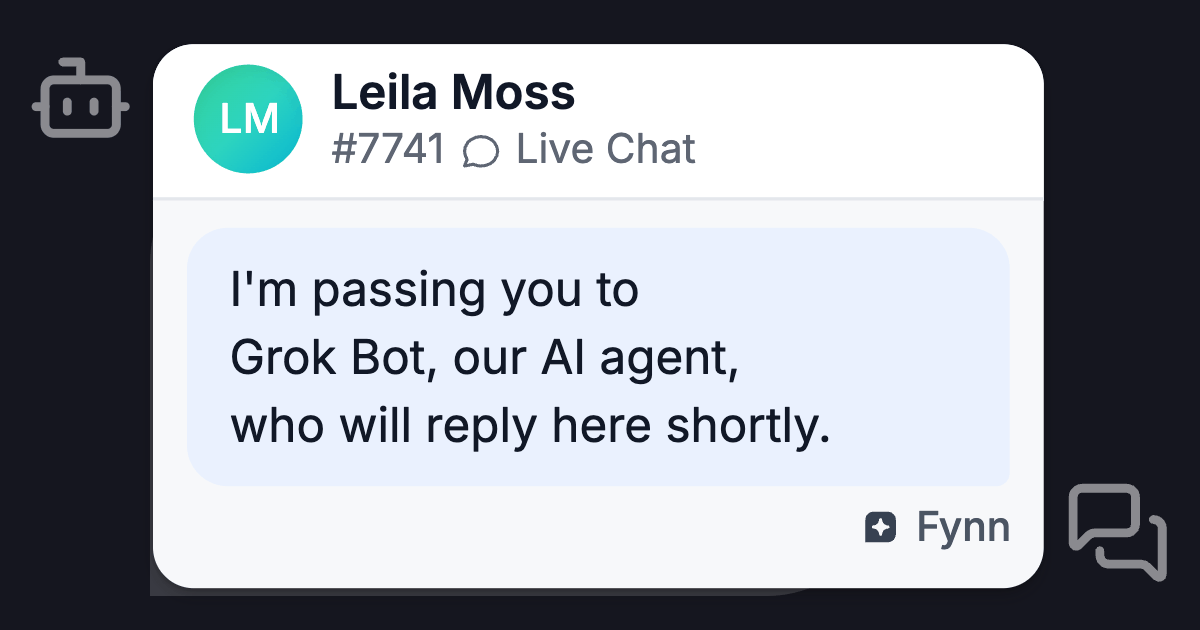
- Fynn tells the customer that he is passing them to Grok Bot, your AI agent, who will reply in the same chat.
- Deskwoot wakes Grok's routine right away, so Grok starts on the conversation without waiting for its next scheduled check.
- Grok reads the conversation. If you switched on order lookups, it can check the verified customer's orders.
- Grok replies, or leaves a draft when the topic is one you want a person to see first. A refund or a cancellation is never Grok's call: it becomes a proposal that someone on your team approves.
- The customer sees that an AI is answering, and your team sees every step in the conversation.
Which conversations Grok gets
Grok gets a conversation when Fynn hands it over or when someone on your team assigns it. That works on 12 channels, every Deskwoot channel except phone calls: email, live chat, WhatsApp, Messenger, Instagram, Telegram, X DMs, LINE, SMS, Microsoft Teams, Discord and the REST API.
While Fynn is still talking to a customer, Grok stays out, so the customer never gets answers from two bots at once.
Set up in 4 steps, without copying a Deskwoot key
The first time, an administrator accepts the data processing agreement for AI agents in Deskwoot, in the first step of Connect an AI agent under AI teammates. Then:
- In Grok Bot, add Deskwoot as a custom connector with the address
https://deskwoot.com/api/mcp. - When Grok asks, approve it on Deskwoot's consent page, where you give it a name and pick the inboxes it works in. If you are already signed in to Deskwoot in that browser, you also choose there what it may send. If you sign in on that page, Grok starts on drafts only, and an administrator can change that later on its page under AI teammates. Grok starts at once when the workspace owner connects it; connected by an administrator or a member, it waits until the owner approves it.
- Write Grok one sentence to start its onboarding. It asks you 5 questions, proposes its rules from your answers, and a person approves them in Deskwoot.
- Let Grok set up its routine, then paste the routine's webhook address and key into Deskwoot yourself.
Until a person approves its rules, Grok writes drafts only.
The 5 questions Grok asks you
- What its job is.
- Which topics wait for a person.
- Which tone to use.
- Who takes over when a conversation is escalated.
- What it must never promise.
When Deskwoot wakes Grok
Once the routine is connected, Deskwoot wakes Grok when:
- a conversation is handed to it;
- the customer in one of its conversations writes back;
- someone mentions it.
Deskwoot wakes Grok only when there is work, so your Grok usage goes to real conversations instead of a check every few minutes.
The full walkthrough is in Connect Grok Bot to Deskwoot.
You decide how much it does alone
Every AI teammate runs at one of 3 levels:
- Drafts only. Grok writes, a person sends.
- Sends replies, held topics become drafts. Billing and payments, legal questions and complaints, account security and data protection are held from the start, and you can add topics of your own.
- Sends every reply Deskwoot does not hold.
What Deskwoot holds at every level
Whatever the level, Deskwoot checks each reply before it goes out. It holds a reply for your team if the reply:
- says a refund happened when it did not;
- shows another customer's data;
- has the AI claim to be a person.
When a customer asks for a person, the conversation goes to your team.
Refunds, cancellations and shipments always need a person
Grok can only propose them. Someone on your team opens the proposal, sees the order live from the store and sends it with their own account.
Approve, pause and check
Approving a draft takes one click, on the web or in the Deskwoot app on your phone.
You can pause or stop an agent at any time. The activity log shows what your agents read, drafted and sent, with a CSV export.
Your customers know it is AI
Grok works under its own name, shown as an AI agent. In live chat each of its replies carries an AI badge, and every email from Grok ends with a line saying an AI assistant wrote it.
On WhatsApp, Messenger, Instagram, Telegram, X, LINE, SMS, Microsoft Teams and Discord, Grok is introduced as your AI assistant before its first reply, and again after a person has answered in between.
This AI label is on for Grok from the start. Only the owner of your workspace can switch it off, and your business is then responsible for telling customers that they are talking to an AI where the law requires it.
A reply in which it claims to be a person never goes out on its own.
What Grok can see
An AI teammate reads only the inboxes you pick, and inside them only its own work: conversations assigned or handed to it, and conversations where someone mentions it.
Reading every conversation in those inboxes is a separate switch that you turn on only if Grok needs it. Mark a conversation or a contact with "Do not share with AI agents" and no agent sees it.
Where the data goes
The first time you connect an AI agent, your workspace accepts the data processing agreement for AI agents. Deskwoot hosts your workspace data in the EU and never uses it to train AI models.
What Grok reads goes to xAI, which runs Grok, so your company needs its own agreement with xAI for that data.
What it costs
Connected AI agents have no monthly fee and need no slot, so you can connect as many as you want. Each conversation in which an agent's reply reaches the customer counts as 1 AI conversation per window (72 hours for an email or a ticket, 12 quiet hours for a chat), from the same allowance as Fynn and Copilot and on top of them:
- Startup: 50 AI conversations a month included, then $0.07 for each further one
- Business: 100 AI conversations a month included, then $0.05 for each further one
- Enterprise: 300 AI conversations a month included, then $0.03 for each further one
Further AI conversations are paid from your prepaid AI balance. An agent's other work in a conversation, such as a note, a label or a draft for a person, counts 0.5, and your agents together count at most 1 per window: a draft of Grok's that a person approves counts 0.5, and a later reply of Grok in the same window adds the other 0.5. Next to Fynn they add at most 0.5, so when Fynn answers and hands over to Grok Bot, which replies, the window counts 1.5, and so does Fynn plus an approved draft of Grok Bot. Reading conversations never counts, and neither does a message a person writes and sends.
When the included AI conversations are used up and your prepaid balance cannot pay for another, a reply from Grok that would still add to the count waits as a draft for a person. AI agents work on every paid plan and in the 7 day trial. The free Hacker plan has no AI agents.
What xAI bills
xAI bills you for Grok Bot itself. Grok takes no paid seat in Deskwoot, but the conversations it works still count toward your monthly conversation limit.
Where it fits best
Online shops
Fynn answers the quick questions on the site. Order and shipping questions that need a look at the order go to Grok, and refunds stay proposals for your team.
SaaS teams and agencies with a lot of email
Long, detailed emails are where a strong general model helps most, and anything you want to read first waits as a draft.
Service businesses that get requests at night and on weekends
Grok works the conversations handed to it while your team is off. The next working day starts with answers sent and the rest waiting for a person.
Claude, ChatGPT and Cursor connect the same way
AI Teammates runs on Deskwoot's MCP server, so other agents connect with the same address: add https://deskwoot.com/api/mcp, sign in and approve the agent on the consent page.
Claude and ChatGPT sign in without a key, and a script that cannot sign in uses a static token. The instant wake is built for Grok Bot's routines; Claude and ChatGPT check in on their own schedule.
Your own agent can also set Deskwoot up for you. On the Start page, "Let your AI agent set this up" gives you one prompt for Claude Code. An administrator connects it with "To set up Deskwoot for you", and it changes the settings in their name, such as the inboxes, the live chat, Fynn and the help center, without reading any conversation or contact.
The details are in Connect an AI agent with the MCP server. The rules every agent follows are in AI teammates: how connected AI agents work in your team.
Get started
On a paid plan, open "AI teammates" in Deskwoot and choose "Connect an AI agent". After the 4 steps above, Grok works the conversations handed to it, and you can check each of its steps in the conversation and the activity log.
New to Deskwoot? Sign up at deskwoot.com/signup for 7 days of Enterprise without a card, for up to 30 seats including yours. You can connect Grok Bot on day one.
When the trial ends, you pick a paid plan or keep working on the free Hacker plan (1 person on your team, no AI agents). The overview is on the Grok Bot page.
Also available in:DeutschEspañolFrançaisPortuguês (Brasil)