WooCommerce customer support: orders, refunds and tracking next to every customer message
Many WooCommerce stores answer support from a mailbox and the WordPress admin in two tabs. This setup puts each customer's orders, refunds and tracking next to their message, with the WooCommerce details that catch people out and a test list for the day you switch.
Contents
A customer writes: "Where is my order? I ordered last Tuesday." You open the WordPress admin, search her name, find the order and tracking number, then paste it into a reply. That works at 10 messages a day. At 50 it eats the morning.
Most of what you need already sits in WooCommerce. This guide puts it next to every message and covers the quirks that catch store owners out.
What WooCommerce does on its own, and where it surprises people
This part applies whatever support tool you end up using.
Automatic and manual refunds
Refunds start on the Edit Order screen. WooCommerce knows two kinds:
- An automatic refund sends the money back through the payment method the customer used. It needs a payment gateway that supports it.
- A manual refund only records the refund in your store. You pay the money back yourself, outside WooCommerce.
WooCommerce names Cash on Delivery and Check Payments as cases where you refund by hand (WooCommerce refunds documentation).
Partial refunds, restocking and cancelled orders
The same page has 3 details worth knowing before a customer asks:
- A partial refund leaves the order status as it was. Only a refund of the full value sets it to Refunded.
- You can refund part of a line item and tick "Restock refunded items" to put products back in stock.
- In WooCommerce's own words: "Directly changing an order's status to Cancelled or Refunded will not automatically refund your customer."
The last one bites hardest. A customer who asked to cancel sees "cancelled" in their account and assumes the money is on its way. It is not.
Tracking needs an extension
WooCommerce itself has no field for a tracking number. Woo sells a Shipment Tracking extension for $59 a year (price on Woo's product page at the time of writing).
It shows tracking on the order page in My Account and in order emails sent after you saved the details. Saving tracking alone sends no email.
Setting the order to Completed afterwards sends the Completed Order email with the tracking in it (Shipment Tracking documentation). So the order of your clicks matters:
- Save the tracking in the Shipment Tracking box.
- Then set the order to Completed.
Want to know how many of your messages are "where is my order?" before you change anything? Our WISMO guide shows how to count them in 7 days.
How fast a refund has to go out
The rules depend on where your customers live.
EU
- A customer can withdraw from an online purchase within 14 days of receiving the goods (Article 9).
- You then refund all payments "without undue delay and in any event not later than 14 days" from the day you learn of the withdrawal.
- The refund uses the same means of payment, unless the customer agrees otherwise.
- You may hold it until the goods are back or the customer shows proof of sending them, whichever comes first (Directive 2011/83/EU, Article 13).
US
- If you cannot ship in the time you stated, or within 30 days when you stated none, you must ask the customer to agree to the delay and offer a cancellation with a prompt refund.
- A prompt refund means within 7 working days after the order is cancelled, also when the customer paid with a credit card from a bank.
- Only credit you give yourself, such as a store account, gets 1 billing cycle (FTC guide to the Mail, Internet, or Telephone Order Merchandise Rule).
Brazil
- Customers who buy outside a physical store can withdraw within 7 days of receiving the product. The amounts paid go back "de imediato" (Código de Defesa do Consumidor, Art. 49).
- For online stores, the store must tell the card company right away so the charge is dropped or reversed (Decree 7.962/2013, Art. 5).
This is general information, not legal advice. Check the rules for the countries you sell to.
Connect the store with a REST API key
A help desk reads your orders through the WooCommerce REST API, with a key you create in your store (WooCommerce REST API documentation):
- Under Settings > Permalinks, pick any option other than Plain. The REST API needs readable permalinks.
- Go to WooCommerce > Settings > Advanced > REST API and click Add key.
- Name it after the tool, for example "Deskwoot", and pick an administrator account that will stay. Each key belongs to a WordPress user.
- Choose Read/Write. A Read key only lets the tool read orders. Deskwoot needs Read/Write to create its 2 order webhooks and to refund and cancel orders.
- Generate the key and copy both the consumer key and the consumer secret. WooCommerce shows the secret only once.
Keep the webhooks alive
WooCommerce switches a webhook off after more than 5 failed deliveries in a row (WooCommerce webhooks documentation). So check WooCommerce > Settings > Advanced > Webhooks now and then.
Your help desk's webhooks should say Active. The delivery log is under WooCommerce > Status > Logs. In Deskwoot, connecting the store again replaces both of its webhooks.
Running it from the Deskwoot inbox
Deskwoot is our help desk. It reads your store through the key from above.
Connect the store
Paste the store address, the key and the secret under Settings > Integrations > WooCommerce (help article). This works on every plan, the Free plan included (it shows as Hacker on the pricing page).
Use the exact address your store answers on, starting with https://. Deskwoot does not follow redirects, so an address that redirects (http to https, or www to the bare domain) fails the test.
Deskwoot then creates 2 webhooks in your store, "Deskwoot order.created" and "Deskwoot order.updated", so new and changed orders arrive right away. Your WooCommerce customers come in as contacts and sync every day.
Orders next to each message
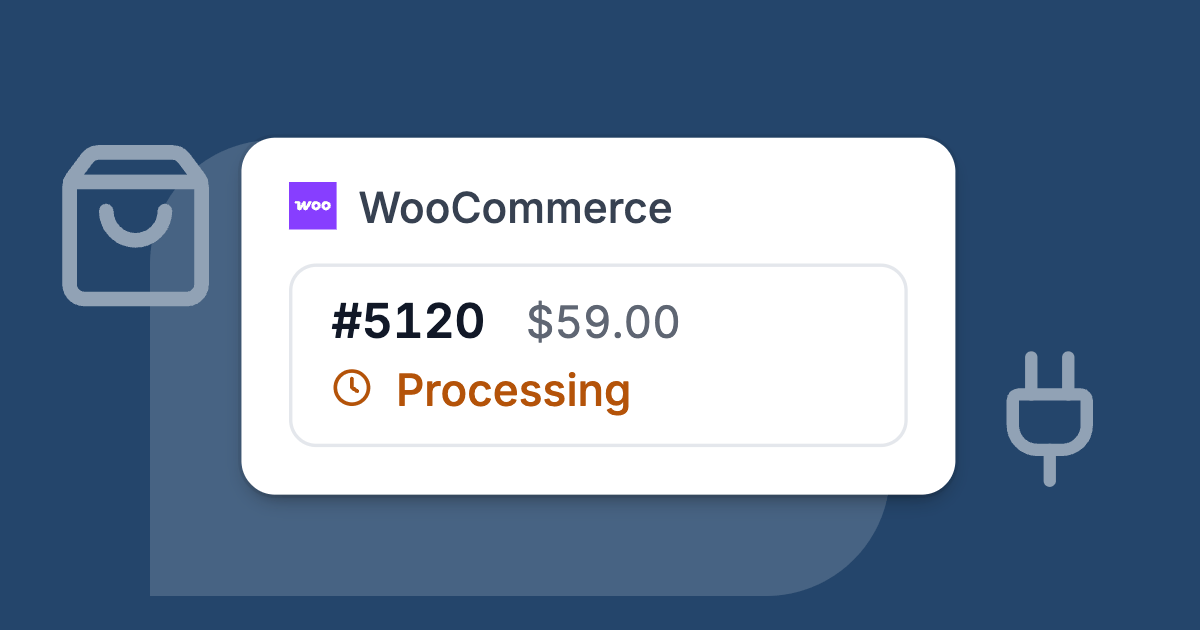
When a customer writes, the Orders section in the Details tab next to the conversation shows their 10 most recent orders with items, totals and status. Older orders show too, because Deskwoot reads them live from your store.
The match runs on the billing email of the order. A WhatsApp or SMS contact has no email yet, so ask which email they ordered with and add it to the contact.
A similar address (ann@ and joann@) never pulls in another customer's orders. So nobody refunds the wrong person's order.
Refunds and cancellations without the WordPress admin
Someone asks to drop one item from an order that has not shipped yet. From the order in the conversation you can:
- Refund everything that is left.
- Pick line items and quantities.
- Add the shipping.
- Type an amount.
The dialog shows what was refunded so far and what is left. For picked items WooCommerce computes the amount, and you can refund less. One switch puts the items back in stock, because WooCommerce restocks every line of a refund or none.
The money goes back through your payment gateway. When the gateway cannot refund on its own (cash on delivery, bank transfer, cheque), WooCommerce refuses the whole refund and Deskwoot shows its reason.
Then you pay the customer yourself and record a manual refund in WooCommerce, as before.
Cancelling sets the order to Cancelled and, as in WooCommerce itself, moves no money. For a paid order, issue the refund as well.
Each refund and cancellation leaves a private note in the conversation, so whoever opens it next does not refund twice.
By default only administrators can refund or cancel. On the Enterprise plan a custom role can give that right to chosen agents.
Tracking and live parcel status
Deskwoot takes tracking numbers from Woo's Shipment Tracking extension. Without it, your team and Fynn still see the order status, but there is no tracking link to share.
On the Business and Enterprise plans you also see the carrier's live status through Ship24. It covers over 1,500 carriers, among them DHL, Hermes, DPD, UPS, Royal Mail and Correios, and you need no Ship24 or carrier account.
The status is fetched when a customer asks Fynn, or within a few hours for an order linked to a conversation, and kept current until delivery (Ship24 help article).
Live chat without a plugin
Copy the snippet from your live chat inbox and paste it into one of these places (WordPress help article):
- Your theme's footer.
- A header and footer scripts plugin you already use.
- Your page builder's custom code area.
The loader is about 10 KB gzipped, loads in the background and runs in its own frame, so your theme's CSS does not clash with it.
Chats land in the same inbox as email. Once a visitor's contact has their email, their orders show next to the chat too.
Let Fynn answer "where is my order?"
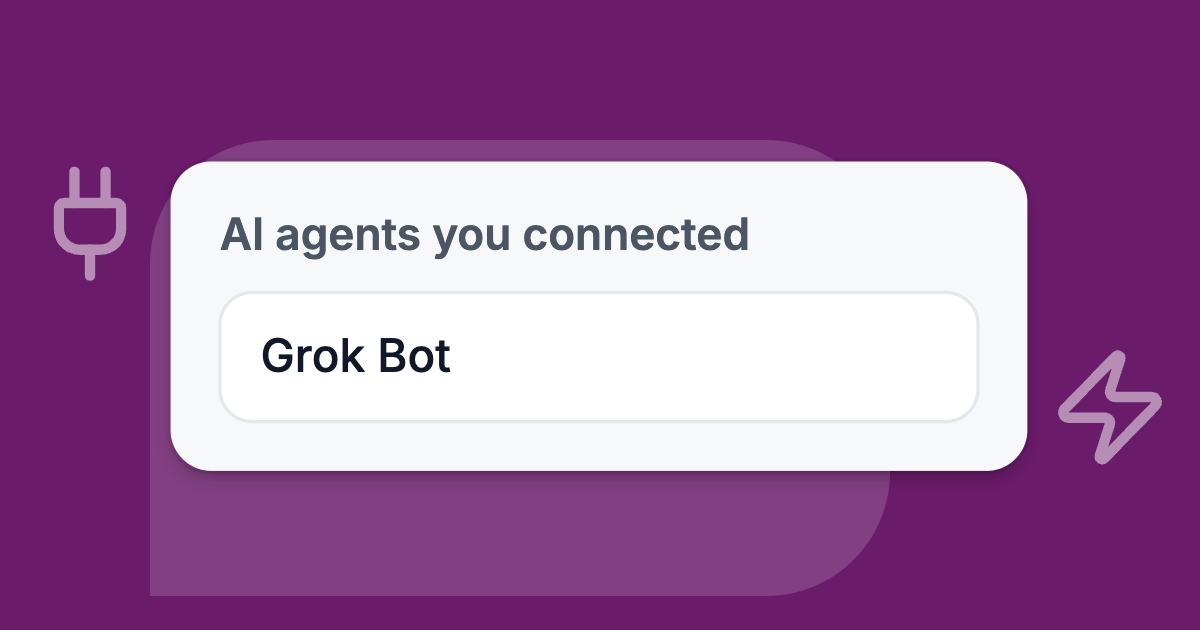
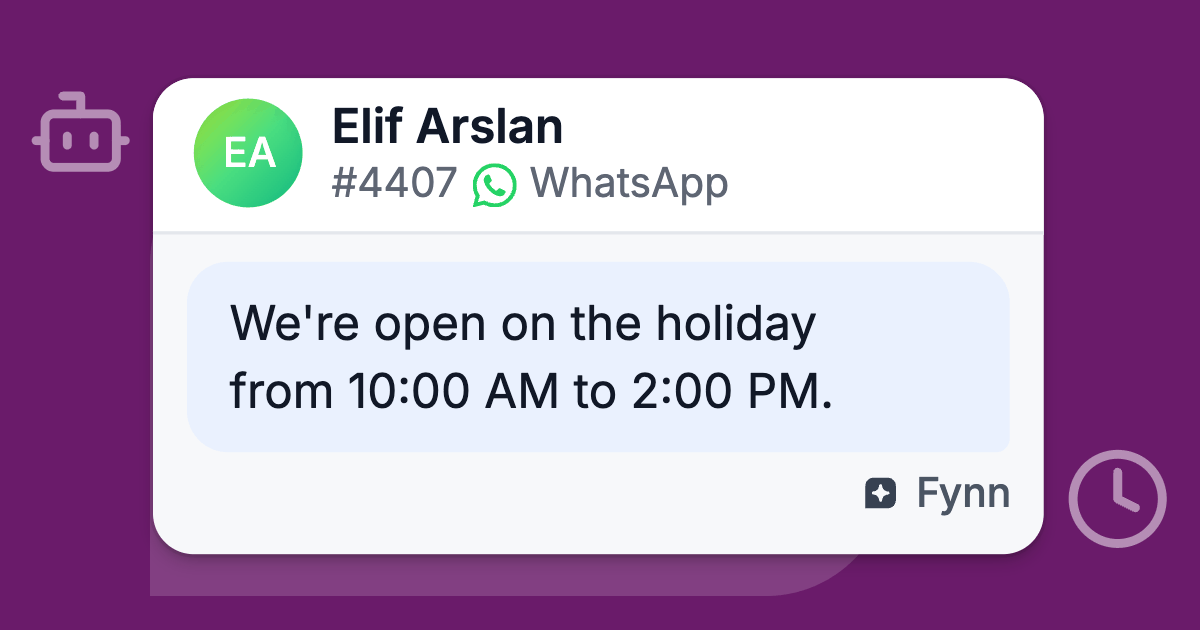
Fynn is Deskwoot's AI agent on the paid plans. Allow order access in the bot settings, and a customer gets an order's status by giving the order number and the postal code of the shipping address.
Fynn falls back to the billing postal code when an order has no shipping address. With "Share tracking links with customers" on, the reply for a shipped parcel carries a tracking card that links to the carrier.
Fynn looks the number up live in your store, so orders placed before you connected work too. If a plugin gives your orders their own numbers, Fynn searches for those as well.
What stops someone from guessing
After 3 wrong tries in one conversation, the lookup locks for 15 minutes, so nobody can guess their way through your orders.
Specific order or payment details wait until the customer clicks a confirmation link Fynn emails them. The link is valid for 15 minutes.
Refunds by Fynn, and the price
Fynn can also refund for a verified customer who confirms in writing, within limits you set. That stays off until you switch it on. We wrote about those limits in letting an AI agent take real actions without losing control.
Fynn starts on the Startup plan at $4 per agent a month ($3.20 billed yearly). That includes 50 AI conversations a month for the whole workspace, and each extra one costs $0.07.
Test before your team stops answering from the mailbox
Run this once on a quiet afternoon, with a real payment you refund afterwards:
- Place an order to your own address with a gateway that supports automatic refunds, using an email address you can write from.
- Write to your support address from that email. The order should show next to the message.
- Refund 1 item without the shipping. Check the money in your gateway's dashboard and the order in WooCommerce.
- Place a second order with cash on delivery or bank transfer and try to refund it. You should see WooCommerce's refusal. Agree in the team who refunds those by hand.
- Cancel a paid test order, then check that the payment is still there and refund it.
- Save tracking on a test order in the Shipment Tracking box, set it to Completed, and check that the Completed Order email shows the tracking.
- With Fynn switched on (paid plan or trial) and tracking links allowed, open your shop in a private window and ask the chat for the order with its number and postal code, then once with a wrong postal code.
- Check that both Deskwoot webhooks are Active under WooCommerce > Settings > Advanced > Webhooks.
- Forward your old support mailbox to Deskwoot (forwarding works on every plan, see connecting your email inbox) and send one test email.
What it costs, and where to start
If every step passes, your team can stop answering from the mailbox. By then you have seen the orders panel, the refunds and Fynn work in your own store, with your own gateway.
- Free (Hacker on the pricing page): $0 for 1 agent and 100 conversations a month, with live chat, email by forwarding and the WooCommerce connection.
- Startup: $4 per agent a month. It adds Fynn and 1,000 conversations a month.
- Business: $8 per agent a month. It has no monthly cap on conversations and adds the live parcel status.
The pricing page lists the rest, and the page for online stores covers Shopify and Shopware too.
To start, create a Deskwoot workspace and connect your store under Settings > Integrations. Orders show with the next message, older ones included, because Deskwoot reads them live.
A new workspace gets 7 days of the Enterprise plan with no card, for up to 30 seats including yours, so you can run the Fynn steps too. After that, pick a paid plan or stay on the free Hacker plan.
Also available in:DeutschEspañolFrançaisPortuguês (Brasil)